
Guideshapez 2
Shapez 2 Beginners Guide: 12 Essential Tips for 1.0
Twelve habits that stop the rebuild spiral, most of them straight from tobspr's own 1.0 tips devlogs.
VerdictPlay Certification, keep the Vortex clear and build in full belts. Everything else in shapez 2 gets easier once those three stick.
This Shapez 2 beginners guide comes down to one habit: build in full belts and one-job platforms, and keep the Vortex clear. Your first factory will deliver what the game asks for and still turn into a knot of belts once shapes need four or five steps. Every tip below is aimed at that moment, and most come straight from the tips devlogs tobspr Games posted after 1.0.
Sponsored

About the game
shapez 2
tobspr Games
Updated 2026-10-19: Rebuilt around tobspr's official 1.0 tips, advanced tips and troubleshooting devlogs. Tips no source backed up were removed, playtime now comes from HowLongToBeat, and there's a blueprint warning for Update 1.2.
TL;DR: Play the Certification scenario first, then Classic Regular. Move your production off the Vortex Platform early, size every line to fill a whole belt, give each platform one job and save it as a blueprint. When something breaks, work backwards from the end product. Manufacture Mode can wait until Classic feels easy.
BESTPRICE: Want shapez 2? These stores list it: Buy on Eneba → Buy on Humble Bundle → Buy on Gameseal → Buy on Kinguin →
Shapez 2 beginners guide: the quick answer
Plan the route before you place machines, and measure everything in full belts. The building info box tells you how many machines fill one belt, so you never have to guess ratios. Keep shapes of different types on separate belts, and use stacked building layers when you run short of room. Shapez 2 has no enemies or timers, so tearing a section down to rebuild it costs you nothing but a few minutes.
This guide covers the Classic campaign on PC, Mac and Linux. For what 1.0 added, see the shapez 2 1.0 release overview; for whether it's worth buying, the Shapez 2 review.
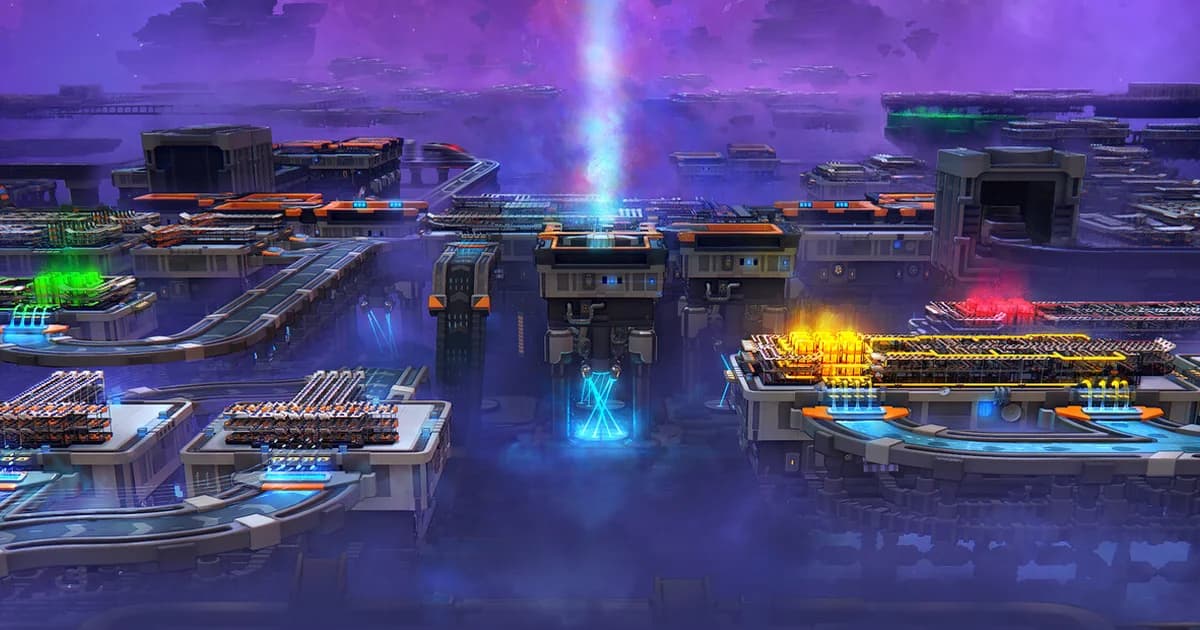
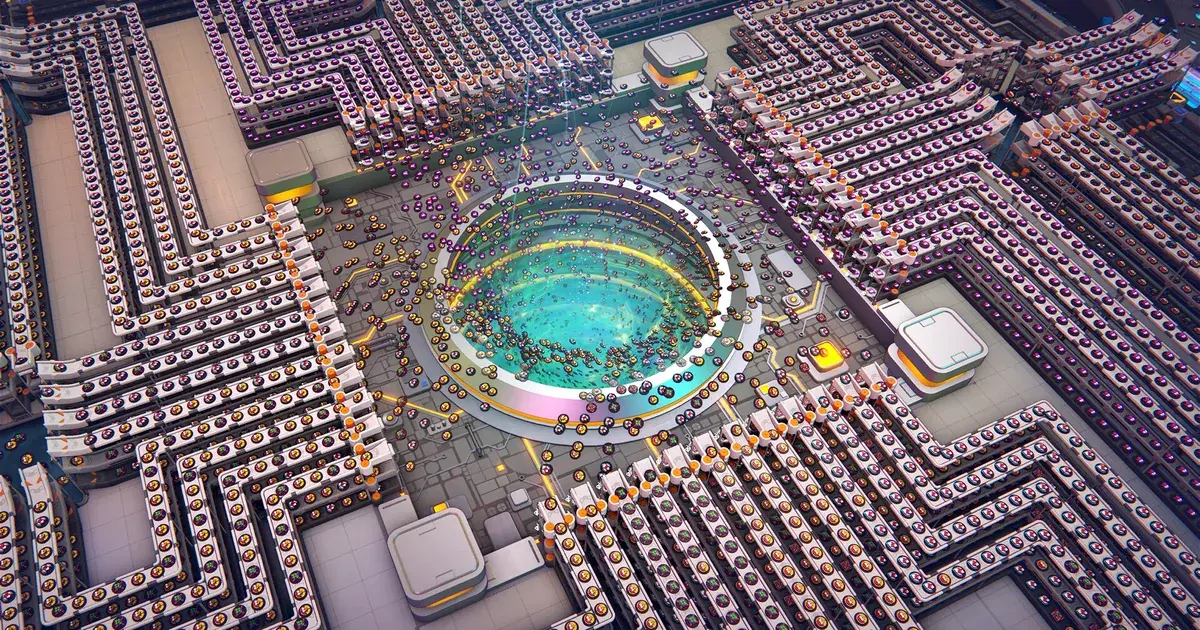
Screenshot: Steam store page. A late-game factory wrapped around the Vortex; tobspr's first tip is not to build like this early on.
Sponsored

12 tips that stop the rebuild spiral
Tip 1: Start with Certification, then Classic Regular
tobspr's own advice for 1.0: if you've never played, run the Certification scenario first. It's about an hour long, teaches the basics, and hands you straight into the Classic campaign. On the scenario screen, Regular is the one the game labels "recommended for first-time operators". Hard, Insane and Hexagonal can wait.
Tip 2: Keep the Vortex clear
You'll place your first buildings next to the Vortex, and that's fine for the first few minutes. The developers call that space "the most valuable real estate in the game", because only a limited number of belts can connect to the Vortex. Move your production to other platforms early and run finished shapes in.
Tip 3: Delete and rebuild instead of patching
Every first factory has ugly sections. tobspr's advice is blunt: tweaking a bad layout "often just moves the issue", and it's usually better to delete it and build again with what you've learned. The second version goes up faster because you've already solved the routing once.
Tip 4: Think in layers, not just belt crossings
Most players first use the upper building layers to cross belts or feed both inputs of a Stacker. You can place buildings on every layer too. Once you've unlocked all the layer upgrades (the third layer comes from Research), a one-layer-tall production line can be copied and stacked twice on top of itself for triple the output. Platforms can sit on every layer as well. Select a working line, press Ctrl+C, then Ctrl+V to paste it.
Tip 5: Build in full belts
Click a belt and the info box shows its maximum throughput; click a building and it shows how many of that building fill one full belt. In the 1.0 trailer, a basic Conveyor Belt reads 180 shapes per minute. Sizing every line to a full belt saves you all the maths later: if a recipe needs a 3:2 ratio, you run three belts of one shape and two of the other.
Screenshot: official shapez 2 1.0 launch trailer (tobspr Games), frame at 0:31. The info panel on the right is where full-belt numbers come from.
Tip 6: When ratios don't match, merge before you split
Say one step needs three machines and the next needs four. Don't try to wire them to each other directly. Merge the first group's output onto one full belt, then split that belt across the next group. Because each group handles exactly one full belt, you can always fall back on that belt as the hand-off.
Tip 7: One shape type per belt
Mixing shapes on a single belt is asking for a jam. Sorting tools unlock late, and one stray shape can block a line. tobspr's troubleshooting devlog says to keep each shape on its own full belt. Space Belts are the exception: their separate layers can carry different shapes without mixing.
Tip 8: Don't rotate shapes for the Vortex
You can skip the Rotator at the very end of a line. tobspr confirms orientation doesn't matter when you deliver to the Vortex: as long as the parts sit in the right positions relative to each other, it accepts them. The exception is randomized goals on the Operator screen, which do need the right orientation.
Tip 9: Take the free shapes floating in space
Shapes drifting around the map are yours to mine. Zoom all the way out to Overview Mode and use its shape filters to find the pieces you need, even if they need a cut first. If the source is far away, run a train to it.
Tip 10: Put time into Research
Do some shape jobs in Classic Mode, or set up a passive Research Credit supply in Manufacture Mode. Research is where the big upgrades are: global speed multipliers, extra Vortex inputs, faster trains with more capacity, and better building variants like a Cutter and Swapper that don't destroy shapes. The third building layer comes from here too.
Tip 11: Give each platform one job, then blueprint it
This is the habit that stops the spaghetti. Build a platform that only rotates, one that only cuts quarters, one that only paints, and save each as a blueprint. Chaining finished one-job platforms in order is faster than designing a new mixed line for every shape. Copy a working section with Ctrl+C and press Ctrl+B to turn it into a blueprint; drag your favourites onto the hotbar, and file the rest in folders (they nest three deep).
One caution. Update 1.2 changed how blueprints are saved, and blueprints from before 1.0 no longer load in the live version; the 1.1 branch exists to carry them over. Long-time players have noticed. "Don't bother with blueprints," [Joe]Mindbender wrote in a negative Steam review after 463 hours. "They'll just screw you in the future by making them incompatible." We'd still blueprint everything; just expect to resave your library after a big update.
Tip 12: Debug backwards, and learn the hotkeys that help
When the end product is wrong, start at the end and walk back up the line until the mistake disappears, then fix the platform where it starts. Fixing the end first often means reworking something that was fine. On Space Belts, watch the flow: the platform where the backup ends is the one to inspect. Hotkeys worth learning early:
| Key | What it does |
|---|---|
| C | Pipette: hover a placed building to pick the same one |
| O | Select a belt or pipe and everything connected to it |
| I | Clear shapes from the selected section after a fix |
| Ctrl+Z | Undo a placement mistake |
| H | Jump back to the Vortex |
| L | Drop a named location marker |
| G | Open the Codex, the in-game reference with example videos |
Manufacture Mode: leave it for later
Manufacture Mode arrived with 1.0 and is built around permanent, large-scale factories. Instead of delivering to the Vortex, you feed shapes to a Trade Station, which outputs a new shape type you need for the next tier, and so on across 9 tiers. A station only keeps producing while you keep supplying it. tobspr first planned it as the default mode, then made it optional because it drops you straight in at the Space Belt level, which they felt could overwhelm new players. Their 1.0 advice is to get comfortable in Classic first. The Manufacture Mode guide covers the details.
Mods: after the campaign
Modding launched with 1.0 through the Steam Workshop. Hold off until you've finished the base campaign: mods that automate parts of the puzzle skip the thing that teaches you the game, and some break when the game updates. Update 1.2 added a separate test branch so modders can update before a patch goes live. The best mods guide has picks once you're ready.
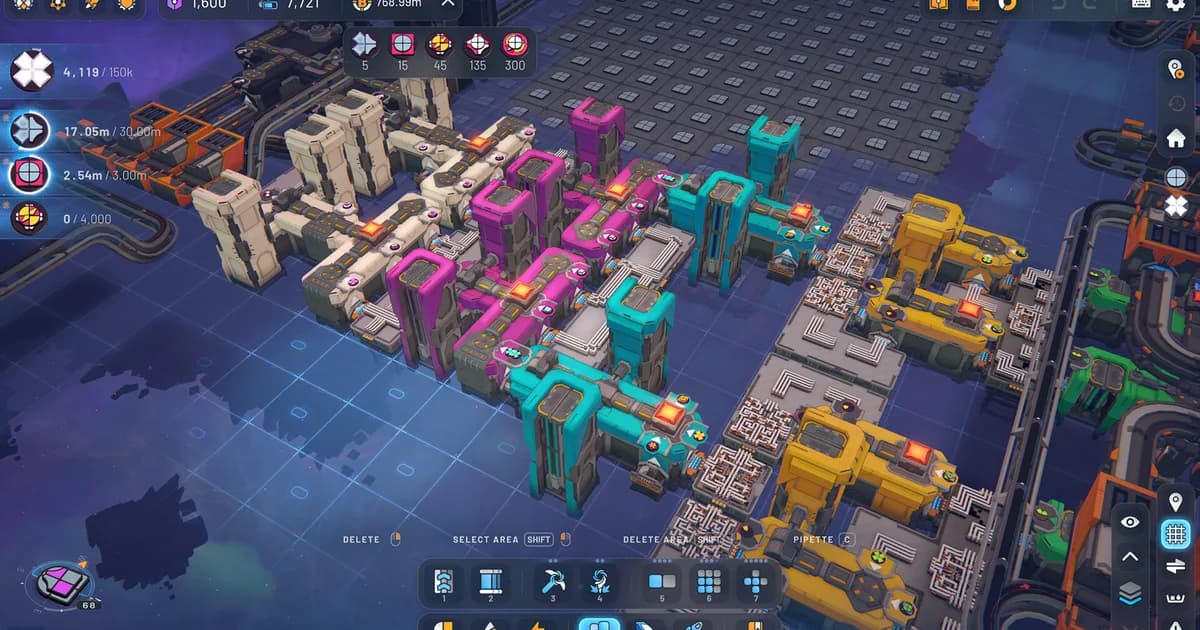
Screenshot: Steam store page. A tidy colour-coded line: one job per section, full belts in and out.
See it in motion
We watched tobspr's 1.0 launch trailer on October 19. It's useful as a quick tour rather than a tutorial: the belt info box with its 180-per-minute reading shows up at 0:31, blueprint placement at 0:59, and the Classic scenario select (Regular, Hard, Insane, Hexagonal) at 1:13.
Our take
shapez 2 is gentler than it looks. Most early frustration comes from building the way you'd sketch on paper: one long line that does everything. Whole-belt numbers and one-job platforms fix that, and they're exactly what the developers push in their own tips. Players notice the nudge. Loyal, recommending it after 81 hours, wrote that the game "does a good job subtly 'nudging' the player toward 'best practices' in automation." It sits at Overwhelmingly Positive on Steam from 15,493 reviews, and the $29.99 list price was down 40% to $17.99 on October 19. If you're new to factory games, this is one of the friendliest places to start.
Frequently Asked Questions
What is shapez 2? A 3D factory builder by tobspr Games about extracting, processing and delivering shapes. Version 1.0 released April 23, 2026. No enemies, just logistics.
Is shapez 2 hard for beginners? Not early on. Play Certification, then Classic Regular. Difficulty rises as shapes need more steps.
What is Manufacture Mode in shapez 2 1.0? An optional mode about permanent factories and Trade Stations across 9 tiers. Play it after Classic.
Does shapez 2 support mods? Yes, through the Steam Workshop since 1.0. Better after the base campaign.
How long does shapez 2 take to beat? About 28 hours for the main story on HowLongToBeat, around 60 for full completion.
Can you play shapez 2 on macOS or Linux? Yes, on Steam for Windows, macOS and Linux.
Do shapes need to be rotated correctly for the Vortex? No, except for randomized Operator goals.
GODEEPER: LegionBound has comparable systems depth for players who like progression-heavy games once Shapez 2 is cleared. LegionBound Tips Guide →
Related Reading
- Shapez 2 Manufacture Mode Guide: How It Works in 1.0: Dimensional Waste, Trade Stations, and the path to the Grand Vortex Assembler.
- Shapez 2 Shape Stacking Guide: Layers & The Stacker: How the Stacker layers shapes and why input order matters.
- Shapez 2 Blueprints: Save, Share & Import to the Library: Save, share, and organize repeatable factory sections.
- Shapez 2 Best Mods 2026: Top Workshop Picks & Install: Workshop picks for quality-of-life improvements and new factory tools.
- Shapez 2 Complete Guide 2026: Automation, Belts, Manufacture: The wider hub for automation, belts, Manufacture Mode, and related guides.
- Shapez 2 Automation Guide: Belt Routing and Advanced Tips: Advanced routing, splitters, and overflow fixes that scale.
- Best Indie Games Under $20 in 2026: more cheap picks once the factory is done.
References
Was this guide helpful?
About the author

Systems & Economy Desk
GameBrief's byline for roguelikes, strategy and simulation. Reads patch notes, wiki tables and Steam stats and puts the numbers on the page.
- Roguelikes, strategy and simulation
- Builds, progression and economy
- Sources listed per article
Keep reading
shapez 2 1.0 Arrives April 23: Manufacture Mode and Mods
General · 3 min
Shapez 2 Manufacture Mode Guide: How It Works in 1.0
Guides · 9 min
Shapez 2 Complete Guide 2026: Automation, Belts, Manufacture
General · 16 min
Shapez 2 Shape Stacking Guide: Layers & The Stacker
Guides · 9 min
Shapez 2 Automation Guide: Belt Routing and Advanced Tips
General · 11 min
Shapez 2 Blueprints: Save, Share & Import to the Library
General · 9 min
Sponsored
Disclaimer
This article is published for informational and entertainment purposes. It does not constitute professional financial, legal, or technical advice. Game performance, online services, patch schedules, and store listings change. Verify critical details (pricing, system requirements, regional availability) with publishers and storefronts before you buy. Affiliate links, where present, help support our editorial work and are labelled in our affiliate disclosure.
Comments
Loading comments…