
GuideMoonlighter 2: The Endless Vault
Moonlighter 2 Steam Deck: Verified Status and Settings
About the game
Moonlighter 2: The Endless Vault
Reviewed build: Steam 1.0
Moonlighter 2 Steam Deck status is officially Verified, but that label is not a promise of one universal FPS preset. An official Steam event dated January 16, 2026 gives the Verified status. Digital Sun's own Deck guidance says the game has a special configuration, while its later developer discussion describes solid dungeon performance alongside dips in the main town and some long sessions. This guide separates those verified facts from individual community settings reports.
TL;DR: Steam's official event labels Moonlighter 2 Verified on Steam Deck. If the special Deck configuration has been reset, Digital Sun's dated guidance says Low settings, FSR3 antialiasing, and Balanced or Quality upscaling. The developer reported solid 60 FPS in dungeons but about 40 FPS dips in the town and some dungeon sections after several hours. Treat community presets as experiments, not guarantees.
BESTPRICE: Don't own Moonlighter 2 yet? Loaded sells Steam keys for it, so compare the current price with Steam before you buy. Get Moonlighter 2 on Loaded →
Is Moonlighter 2 Steam Deck Verified? (quick answer)
Yes. The official Steam Community event Moonlighter 2: The Endless Vault is Verified on Steam Deck is dated January 16, 2026. That is the verified compatibility result used here. The raw Steam Deck compatibility report endpoint did not return during the September 30 research check, so this article reports no unverified control, text, or performance details from it.
Moonlighter 2 Steam Deck: key takeaways
- Verified is official, but it is a baseline rather than a fixed frame-rate promise.
- Digital Sun says the game has a special Steam Deck configuration and advises not tweaking it.
- If that configuration was reset, the dated developer guidance names Low settings, FSR3 antialiasing, and Balanced or Quality upscaling.
- The developer reported solid 60 FPS in dungeons during testing, with about 40 FPS dips in the town and some dungeon sections after several hours.
- Community posts show different profiles for 30, 45, and 60 FPS targets, so no single profile is presented as best.
- No official battery, wattage, universal FPS, or long-session guarantee is claimed here.
Overview
This guide covers the Steam 1.0 release and research checked on September 30, 2026. It answers three separate questions that are often collapsed into one search result: whether the game is compatible with Steam Deck, what Digital Sun officially recommended for the device, and what performance reports exist outside the developer's own testing.
The compatibility answer is the cleanest. Steam has an official event page carrying the Verified label. That means the game's current Deck status is not a guess based on a screenshot or a community comment. It does not expose a guaranteed frame rate, a battery target, or one graphics profile that every device and area must match.
The settings answer is also bounded. In a Steam discussion, Digital Sun wrote that “There is a special config created for the Steam Deck” and told players to “do not tweak any graphics settings.” The same discussion gives a fallback if that configuration has been reset: set everything to Low, use FSR3 antialiasing, and choose Balanced or Quality upscaling. That guidance is dated pre-1.0 advice, so it is included as a real official reference, not relabeled as a new benchmark.
The performance answer has the largest caveat. Digital Sun's official Reddit post says Verified is a useful baseline, reports dungeons at a solid 60 FPS in its testing, and says the main town and some dungeon sections after several hours could dip to about 40 FPS. The post also names RAM usage as a remaining focus. Those numbers describe the developer's context and are not a guarantee for every run.
GODEEPER: Before changing device settings, read the Moonlighter 2 Tips: 9 Rules for Your First Hours Guide for the backpack and shop loop you will be testing.
Steam Deck settings: what is officially supported
The official advice has two layers. First, let the game's special Steam Deck configuration do its job. Digital Sun specifically asked players not to tweak the graphics settings in that configuration. That is the safest starting point because it is the only device-specific preset described by the developer rather than inferred from a community profile.
Second, if a reset or another change has removed that configuration, use the fallback the developer actually named: everything on Low, FSR3 for antialiasing, and Balanced or Quality for upscaling. The discussion also suggests restarting after roughly an hour to an hour and a half for a better experience because performance could deteriorate over time while the team worked on a permanent solution.
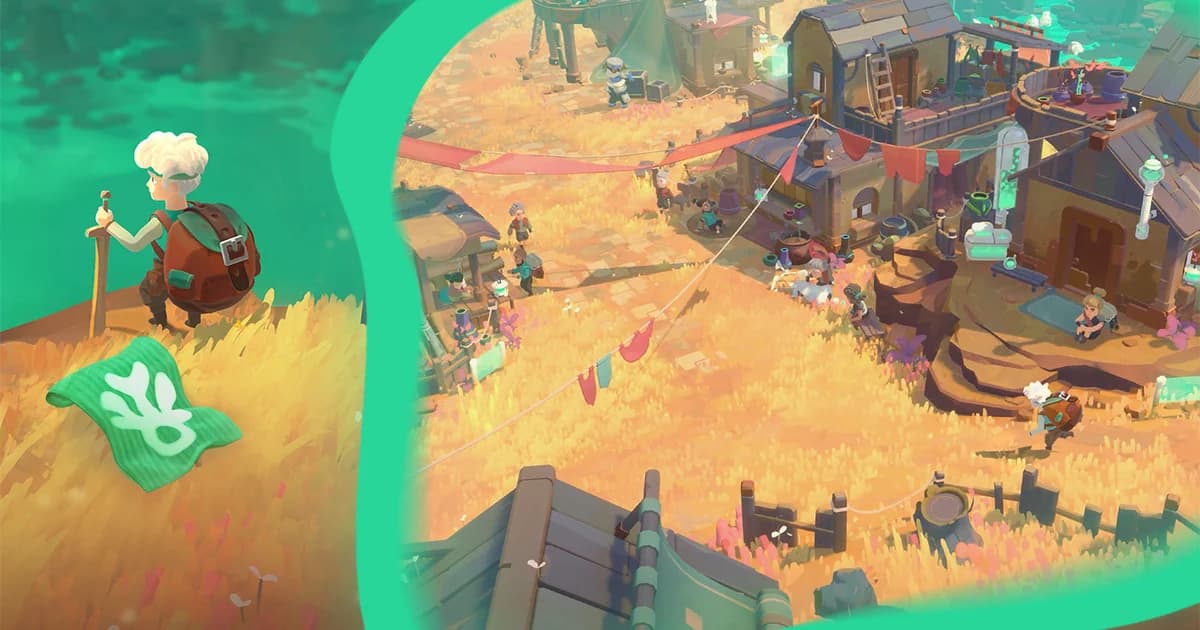
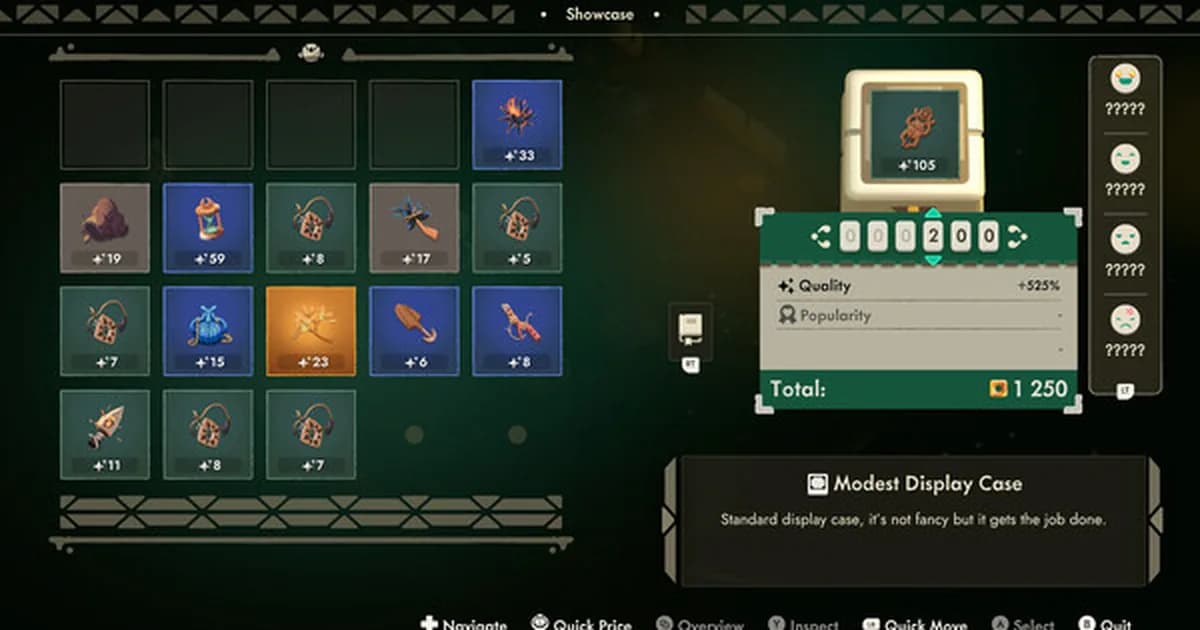
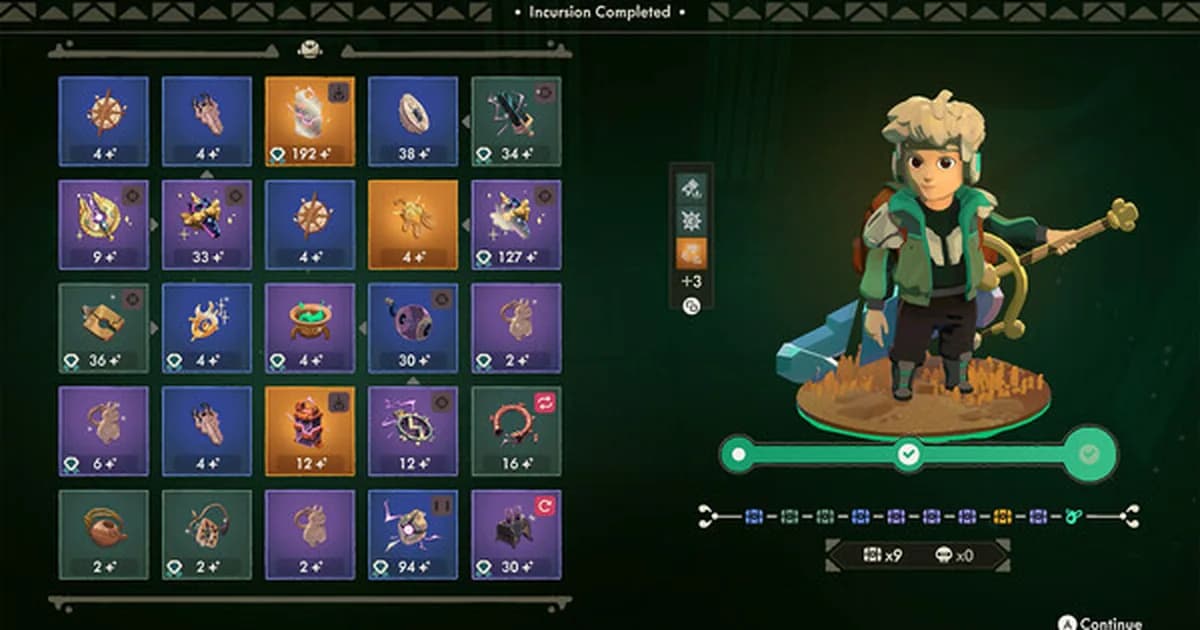
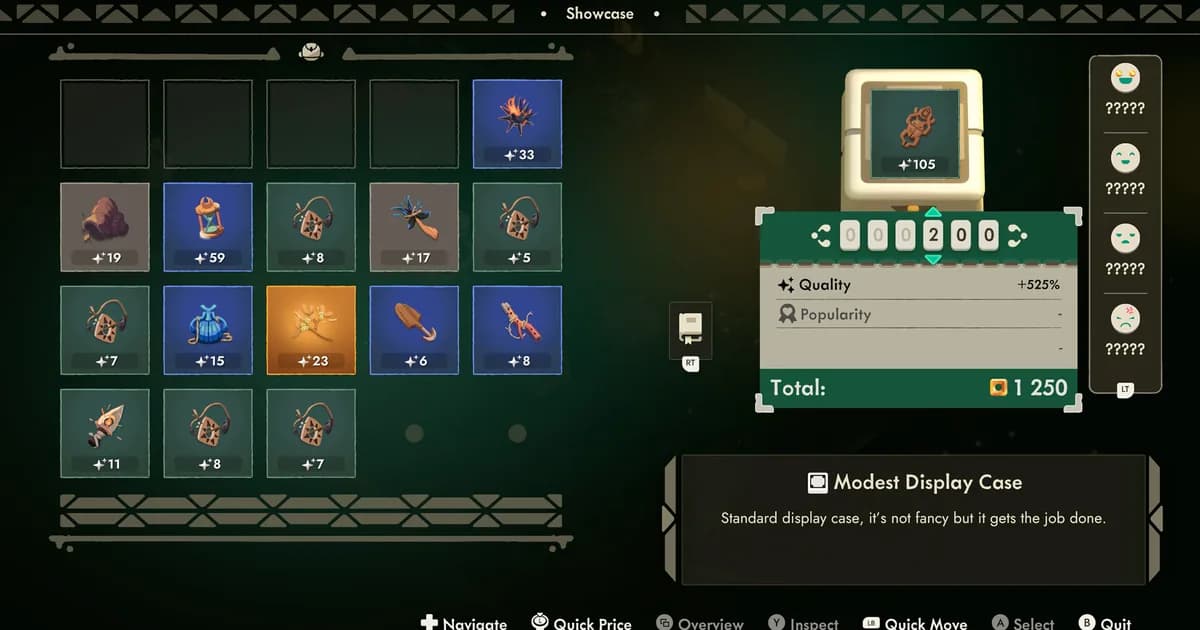
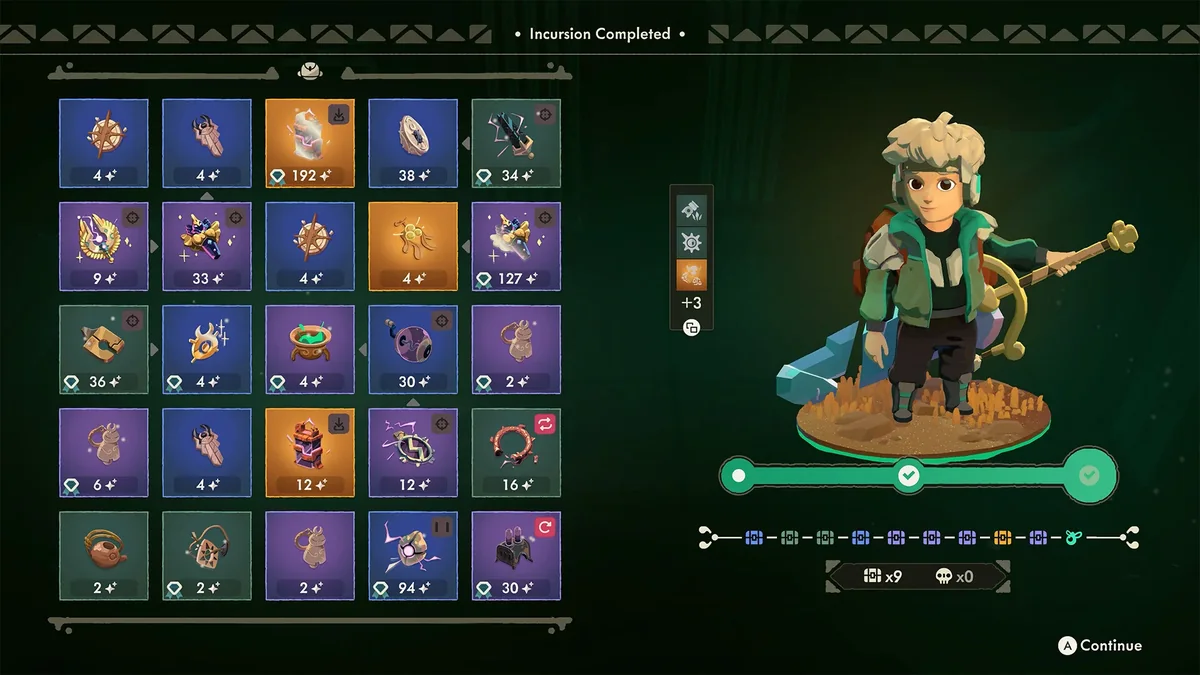 An official Steam screenshot shows the inventory and progression screens that should remain readable during a Deck session.
Do not turn that fallback into a promise that FSR3 Balanced produces a particular frame rate. It is a real developer recommendation for a reset configuration, not a lab result. Likewise, the official material checked here does not publish a required TDP, manual GPU clock, refresh rate, battery profile, or universal frame cap. Those omissions are why the community settings below stay attributed to their posts.
Step-by-Step: set up a defensible Deck test
1. Start from the Verified baseline: Install the Steam 1.0 build and begin with the game's special Deck configuration. The official status tells you the game has passed Steam's compatibility bar; it does not tell you how every later graphics change will behave.
2. Leave the special configuration alone first: Digital Sun's Steam guidance says not to tweak the graphics settings in that configuration. Use a short shop visit and one dungeon section to check controls, text, menus, and image stability before changing anything.
3. Restore the named fallback only if needed: If the special configuration is missing or was reset, use the documented fallback: Low settings, FSR3 antialiasing, and Balanced or Quality upscaling. These are the developer's words, not numbers reverse-engineered from a screenshot.
4. Test more than one area: Record how the game behaves in the shop, main town, and a busy dungeon section. Digital Sun's own report separates dungeon performance from town and long-session behavior, so one quiet room cannot stand in for the whole game.
5. Test a longer session separately: Earlier official guidance warned that performance could deteriorate after about an hour to an hour and a half and suggested restarting. If a long session changes the result, record the session length instead of calling the original preset bad.
6. Change one variable at a time: If you use a community profile, copy its values exactly, test it, and change only one item on the next pass. Otherwise you cannot tell whether a frame cap, upscaling mode, power setting, or refresh rate caused the difference.
Moonlighter 2 Steam Deck performance: verified versus measured
The word Verified answers compatibility, not performance uniformity. Steam's official event supplies the label. Digital Sun's official Reddit discussion supplies the more detailed context: its testing found dungeons running at a solid 60 FPS, while the main town and some dungeon sections after several hours could dip to about 40 FPS. The developer said RAM usage was the next major focus.
That combination is more useful than a headline saying “runs at 60.” It tells you where a player may notice variation and why a short test can look better than a long one. It also explains why community posts can honestly disagree without one side inventing its numbers.
The official September Hotfix 1 notes add a DirectX 11 and DirectX 12 selection for PC instability or poor performance. That is a real official PC option, but the announcement does not present it as a Steam Deck-specific fix. This guide therefore does not tell Deck players to switch APIs or promise that the setting will solve a Proton session.
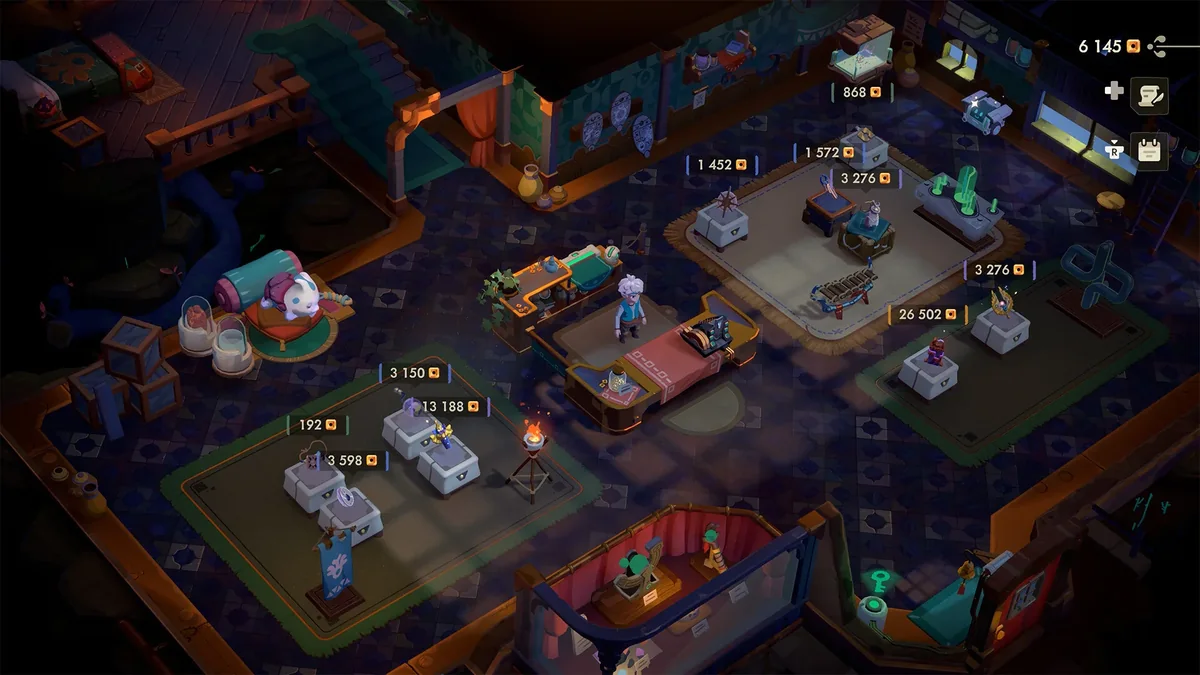 An official Steam screenshot shows the busy shop scene that belongs in a longer, area-by-area performance check.
The practical conclusion is modest: the game is officially Verified, the developer has acknowledged area and session variation, and no source checked here supports a guaranteed FPS or battery figure. If the first run feels smooth, still test the town and a longer dungeon session before deciding that every setting is solved.
Community Steam Deck settings reports
The following are real settings recorded in public r/Moonlighter posts. They are included because they answer what players tried, not because they establish an official target.
| Report | Settings recorded in the post | Reported result |
|---|---|---|
| r/Moonlighter, June 2, 2026 | 1280x800, Fullscreen, Vsync Off, 60 FPS limit, all Low, FSR3 Balanced, 60 Hz, Half Rate Shading On, TDP Off, manual GPU clock Off, scaling Auto, Sharp, sharpness 5 | The poster described almost constant 60 FPS with rare dips to 55. |
| r/Moonlighter, July 19, 2026 | 1280x800, Fullscreen, Vsync Off, 30 FPS setting, all Low, FSR3 Quality, a 30 FPS Steam limit at 90 Hz, Half Rate Shading Off, TDP 10 W, manual GPU 1000 MHz, scaling Auto, Sharp, sharpness 2 | The post records a lower-target profile; a reply reported stable 45 FPS on Medium. |
Those profiles conflict in exactly the way a useful guide should show. One player reports a 60 FPS-oriented setup with no TDP or manual GPU adjustment. Another records a 30 FPS cap, 10 W TDP, and a manual GPU clock, while a reply discusses 45 FPS on Medium. Neither post proves a universal configuration, and neither overrides the developer's special-config guidance.
Steam Deck HQ provides a third-party test rather than a community comment. Its review records an older preferred profile using a 40 FPS limit and 80 Hz refresh, with FSR3 Balanced, and notes menu dips plus later-dungeon concerns. Treat that as a dated test profile from Steam Deck HQ, not an official requirement.
GODEEPER: If the shop is the performance scene that matters to you, the Moonlighter 2 Price Guide: Tiers, Perks and Relic Effects explains what the HUD is showing.
What I would try first
For a source-bounded test, I would use the developer's order rather than a random preset. Start with the special Deck configuration and leave it alone. If it has clearly been reset, use Low, FSR3 antialiasing, and Balanced or Quality upscaling. Then test the town, a busy dungeon, and a longer session before deciding whether to experiment.
If you choose a community profile, treat it as a controlled comparison. Write down the frame target, refresh rate, upscaling mode, Half Rate Shading state, TDP, and manual GPU setting exactly as the post describes. Change one value on the next run. This makes a report useful even if your result differs, because you know which condition changed.
Do not borrow a manual GPU clock or TDP limit just because another player typed a number. Those values are device and preference choices in the cited posts, not requirements published by Digital Sun. The same is true of 30, 45, or 60 FPS targets. Use them as test points, not as promises.
Common mistakes
Treating Verified as a locked 60 FPS mode
Verified is the official compatibility label. Digital Sun's own report still describes differences between dungeons, the main town, and long sessions. A short smooth run cannot prove a fixed frame rate everywhere.
Copying a stranger's power settings without the context
TDP and manual GPU values appear in one community profile, while another poster reports a 60 FPS-oriented result with both disabled. Copy the whole cited profile if you test it, and remember that neither is an official preset.
Changing every setting at once
If you change resolution, upscaling, frame limit, shading, TDP, GPU clock, refresh rate, and sharpness together, a before-and-after result cannot tell you what helped. Make one change, repeat the same area, and note the session length.
Using the PC API switch as a Deck fix
Hotfix 1 documents DirectX 11 and DirectX 12 selection for PC instability or poor performance. It does not establish a Steam Deck solution. Keep that distinction in your notes.
Calling a community report a benchmark
A Reddit profile is evidence of what one player tried. It is not a controlled test across devices, patches, areas, or long sessions. Cite the post, preserve the exact values, and avoid turning it into a guarantee.
Frequently Asked Questions
Is Moonlighter 2 Steam Deck Verified?
Yes. The official Steam Community event dated January 16, 2026 is titled “Moonlighter 2: The Endless Vault is Verified on Steam Deck!” The raw compatibility endpoint did not return during the September 30 research check, so no additional checklist is claimed.
What are the best Moonlighter 2 Steam Deck settings?
No universal community preset is verified. Digital Sun's dated guidance says to use the special Deck configuration and not tweak it. If that configuration was reset, the documented fallback is Low settings, FSR3 antialiasing, and Balanced or Quality upscaling.
Does Moonlighter 2 run at 60 FPS on Steam Deck?
Digital Sun reported solid 60 FPS in dungeons during testing, but also reported about 40 FPS dips in the main town and some dungeon sections after several hours. That is context from the developer, not a promise for every device.
Should I use FSR3 Balanced or Quality?
Those are the two upscaling choices named in the developer's fallback guidance, alongside FSR3 antialiasing. Community posts use both Balanced and Quality in different profiles. Test the named options rather than assuming one is always better.
Can long sessions affect performance?
Earlier official guidance said performance could deteriorate after about an hour to an hour and a half and suggested restarting while the team worked on a permanent solution. A later official developer post also identifies RAM usage as a focus. Record session length when comparing results.
Is there a guaranteed battery or wattage setting?
No verified source checked for this article publishes a universal battery-life, wattage, or manual GPU target. The 10 W TDP and 1000 MHz GPU values in the table belong to one cited community profile and should not be presented as requirements.
References
- Moonlighter 2 on Steam: official store page checked for the live release and feature information.
- Official Steam Deck Verified event: Steam event dated January 16, 2026 with the Verified title.
- Digital Sun Steam Deck discussion: developer guidance on the special config, Low settings, FSR3, upscaling, and restarting after long sessions.
- Digital Sun's Verified discussion on r/SteamDeck: developer context on Verified as a baseline, dungeon performance, town dips, and RAM usage.
- Moonlighter 2 official announcements: Hotfix 1 notes with the DirectX 11 and DirectX 12 option.
- Steam Deck compatibility report endpoint: attempted on September 30, 2026 but timed out or reset, so no response fields are reported.
- Steam Deck settings report, June 2026: one player's 60 FPS-oriented profile.
- Steam Deck settings report, July 2026: one lower-target profile with TDP and manual GPU values.
For broader roguelite context, compare the game-specific decisions in the Dark Scrolls Beginner Tips Guide, Cursemark Roguelite Runes Guide, Alabaster Dawn Dungeon Exploration Guide, Windrose Combat Guide, Legionbound Tips Guide, Rune Dice Beginner Guide, and Best Roguelike Games 2026. These are genre context, not Steam Deck benchmarks for Moonlighter 2.
- Moonlighter 2 Steam key on Loaded: compare the price with Steam before you buy.
Related Reading
- Moonlighter 2 Tips: 9 Rules for Your First Hours Guide: Prepare the shop and dungeon loop before measuring performance.
- Moonlighter 2 Multiplayer: Is There Co-op in 2026?: Get the concise single-player answer.
- Moonlighter 2 Review: Why the 3D Leap Actually Works: Read the broad review of the 3D action RPG.
- Moonlighter 2 Weapons Tier List: 4 Types Ranked (2026): Compare the verified weapon categories used in combat tests.
- Moonlighter 2 Bosses Guide: All 6 Fights Explained: Learn how each boss fight works before your first run.
- Deep Rock Galactic: Rogue Core Beginner Guide: Compare another action roguelite's performance questions.
Was this guide helpful?
About the author

Critical game theorist with a background in film criticism. Writing for print and digital outlets since 2015. Specialises in genre analysis and design heritage.
- Background in film criticism
- 10 years games coverage
- Genre theory and design history specialist
Keep reading
Moonlighter 2 Multiplayer: Is There Co-op in 2026?
Guides · 7 min
Moonlighter 2 Tips: 9 Rules for Your First Hours Guide
Guides · 9 min
Moonlighter 2 Dimensional Effects: Damage and Loot Explained
Guides · 14 min
Moonlighter 2 Achievements: All 56 Steam Unlocks Listed
Guides · 13 min
Moonlighter 2 Bosses Guide: All 6 Fights Explained
Guides · 9 min
Moonlighter 2 Weapons Tier List: 4 Types Ranked (2026)
Guides · 9 min
Game deals · affiliate links

Disclaimer
This article is published for informational and entertainment purposes. It does not constitute professional financial, legal, or technical advice. Game performance, online services, patch schedules, and store listings change. Verify critical details (pricing, system requirements, regional availability) with publishers and storefronts before you buy. Affiliate links, where present, help support our editorial work and are labelled in our affiliate disclosure.
Comments
Loading comments…